Showing posts with label Christmas. Show all posts
Showing posts with label Christmas. Show all posts
Friday, December 6, 2013
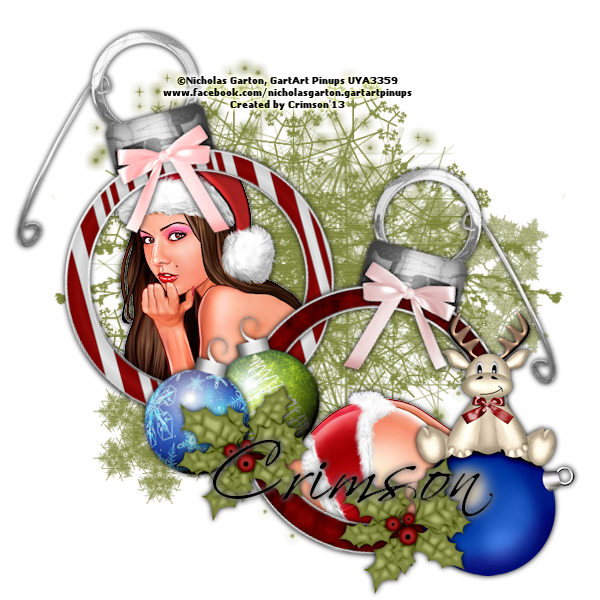
This tut was made using PSPx4
And knowledge of PSPx4.
Supplies needed
Tube of choice. I used one by Nicholas Garton.
You need a license to use his work. You can get it
and his work at *Coming Soon*
PTU kit Tree Trimming Fun by Artlor Designs at Mystical Scraps Store.
Mask of Choice I used MB and SW Mask 11 by Moonbeams and Spiderwebs.
Font of choice I used Scriptina.
Go ahead and open list of Things here used and go ahead and resize them
by the percentage by each item. If there is no number no need to resize.
AD-Paper13 - 75%
MB and SW Mask 11
AD-OrnamentFrame4 - 60%
AD-OrnamentFrame2 - 60%
tube head in frame4
tube butt in frame2
AD-ChristmasBall1 - 35%
AD-ChristmasBall2 - 35%
AD-ReindeerWithOrnament - 50%
AD-HollyBerries - 50%
Scriptina
When you see ** look at tag to see placement for Elements.
Sometimes it is hard to say just how to place it.
Drop shadows added are 0.0.75.7 unless otherwise stated.
You do not have to add drop shadow...I just do it for effects.
It is always good to check for overhang of shadow on edges of tag.
I have made a tag or to and not check and when I got done
I would post it and see the over hang on the sides and think MAN!! lol
Remember to save often.
Open new Image 600x600.
Copy and paste AD-Paper13 as new layer. Layers, new mask layer
choose the mask from the list click ok Merge group.
Copy and paste AD-OrnamentFrame4 as new layer. Image, free rotate,
15 degrees to left. Move up and to left some.**
Add drop shadow.
Copy and paste AD-OrnamentFrame2 as new layer. Image, free rotate,
15 degrees to right. Move up and to left some.**
Add drop shadow.
Copy and paste tube as new layer. Put behind frame4 and show the head.
Erase any overhang from outside the frame.**
Add drop shadow.
Copy and paste tube as new layer. Put behind frame2 and show the butt.
Erase any overhang from outside the frame.**
Add drop shadow.
Copy and paste AD-ChristmasBall1 as new layer. Image, free rotate,
15 degrees to the left. Place just in center of frames and down
a bit.** Add drop shadow.
Copy and paste AD-ChristmasBall2 as new layer. Image, free rotate,
15 degrees to the right. Place just to left and down from other
Christmasball.** Add drop shadow
Copy and paste AD-ReindeerWithOrnament as new layer. Place at bottom
right of tag.** Add drop shadow.
Copy and paste AD-HollyBerries as new layer. Move to over Ornaments.**
Duplicate and move to beside the ball with the moose.**
Add drop shadow.
Add proper copyright. url and Lic if required
and your name. And were done. On the name Dropshadow used was
2,2, 100, 10 white then again with black.
This tutorial was written by Rebecca Townsley on 12/06/13.
Any similarity to any other tutorial is purely coincidental.
Any creations you make following this tutorial is yours
to do with as you please as long as there is no profit made.
This tutorial is not to be copied or passed around.
I would love to see your results!
If you would like them shown on my blog
Send them to dragonsfairy_25@hotmail.com with
Ornament Crazy in the subject line.
Can't wait to check them out!
Tuesday, November 26, 2013

This tut was made using PSPx4
And knowledge of PSPx4.
Supplies needed
Tube of choice. I used one by Steve Baier.
You need a license to use his work. You can get it
and his work at CDO.
PTU kit Ice by Irish Princess Designs.
Mask of Choice I used Mask 50 MB and SW by Moonbeams and Spiderwebs.
Font of choice I used TheNautiGal.
Go ahead and open list of Things here used and go ahead and resize them
by the percentage by each item. If there is no number no need to resize.
IBD_Ice_Paper1
Mask 50 MB and SW
IBD_Ice_Doodle
IBD_Ice_Curls
IBD_Ice_Frame
tube - 85%
IBD_Ice_TiltedTree - 75%
IBD_Ice_Moose - 50%
IBD_Ice_Baubles - 75%
IBD_Ice_Cane1 - 50%
When you see ** look at tag to see placement for Elements.
Sometimes it is hard to say just how to place it.
Drop shadows added are 0.0.75.7 unless otherwise stated.
You do not have to add drop shadow...I just do it for effects.
It is always good to check for overhang of shadow on edges of tag.
I have made a tag or to and not check and when I got done
I would post it and see the over hang on the sides and think MAN!! lol
Remember to save often.
Open new Image 600x600.
Copy and paste IBD_Ice_Paper1 as new layer. Layers, new mask layer
choose the mask from the list click ok Merge group.
Copy and paste IBD_Ice_Doodle as new layer.
Add drop shadow.
Copy and paste IBD_Ice_Curls as new layer. May have to move
down some.
Copy and paste IBD_Ice_Frame as new layer.
Add drop shadow.
Copy and paste Tube as new layer. Move behind frame.
Add drop shadow. Selections all float defloat, on frame layer
erase only the top part of frame over the tube. This makse it
look like the tube is coming out of the frame. Selections none.
Erase any tube overhang from bottom of frame.
Copy and paste IBD_Ice_TiltedTree as new layer. Move to the right
and down a tad.** Add drop shadow.
Copy and paste IBD_Ice_Moose as new layer. Place at bootom
of the tree.** Add drop shadow.
Copy and paste IBD_Ice_Baubles as new layer. Move to the left
of the frame.**Add drop shadow.
Copy and paste IBD_Ice_Cane1 as new layer. Free rotate 90 degrees
to the left.Move to the bottom left of tag.** Add drop shadow.
Add proper copyright. url and Lic if required
and your name. And were done.
This tutorial was written by Rebecca Townsley on 11/26/13.
Any similarity to any other tutorial is purely coincidental.
Any creations you make following this tutorial is yours
to do with as you please as long as there is no profit made.
This tutorial is not to be copied or passed around.
I would love to see your results!
If you would like them shown on my blog
Send them to dragonsfairy_25@hotmail.com with
Christmas Cheer in the subject line.
Can't wait to check them out!
Monday, December 3, 2012

This tut was made using PSPx5
And knowledge of PSPx5.
Supplies needed
PTU NOW FTU kit Christmas in the City by Tasha's Playground.
You can get it HERE.
Tube of Choice. I am using Victoria Fox.
This tube I am using is not in store yet so this is also a teaser tut.
It is COMING SOON!
You need a lic to use her work. You can get it and her work *Coming Soon*.
Font of choice I used Santas Big Secret. You can get it HERE.
Template by Peachy Keen Designs. First on of the two.
You can get it HERE.
Go ahead and open list of Things here used and go ahead and resize them
by the percentage by each item. If there is no number no need to resize.
Template - 120% all layers checked
paper2 - 69%
paper6 - 69%
paper8 - 72%
Tube - 75%
lights
bells2 - 75%
stocking - 50%
sparkle - 90%
When you see ** look at tag to see placement for Elements.
Sometimes it is hard to say just how to place it.
Drop shadows added are 0.0.100.4 unless otherwise stated.
It is always good to check for overhang of shadow on edges of tag.
I have made a tag or to and not check and when I got done
I would post it and see the over hang on the sides and think MAN!! lol
Remember to save often.
Open Template Shift+d to duplicate
Close original and then delete info layer.
Open paper2 click on left photo layer selections all, float, defloat
invert. Paste paper as new layer Delete selections none.
Delete original layer. Repeat for right photo layer and center
photo frame. Add drop shadow to frame.
Open paper6 click on right photo frame layer selections all, float, defloat
invert. Paste paper as new layer Delete selections none.
Delete original layer. Repeat for left photo frame layer and
center photo. Add drop shadow to frames.
Click on the doodles layer selections all, float, defloat
invert. Open paper8 copy paste as new layer. Delete, selections
none. Delete original layer. Add a drop shadow using a
color from the tube.
Using Change to target brush pick a color from tube or kit you are
using. Click on the leaves layer and go over that. Pick a different
color and click on the holly layers and go over that with the brush.
Add drop shadow to all those layers.
Copy and paste tube as new layer. Move to left just a bit.**
Add drop shadow.
Copy and paste lights as new layer. Move to bottom of tag.**
Add drop shadow.
Copy and paste bells2 as new layer. Move to bottom of tag over
the tube.** Add drop shadow. On tube selections all, float, defloat.
Back to the bells2 use eraser tool to erase the top ribbong on the
bells to make it look like that part is behind the tube.
Copy and paste stocking as new layer. Move to top right of tag.**
Add drop shadow. Duplicate, image, flip horizontal and move to left
of tag.
Using crop tool width 600 hight 525 move it to top click the check.
Copy and paste sparkle as new layer.
Add proper/clear copyright and Lic.# (If Needed)
Add name using inner bevel with following settings
in picture below and were done.

This tutorial was written by Rebecca Townsley on 12/3/12.
Any similarity to any other tutorial is purely coincidental.
Any creations you make following this tutorial is yours
to do with as you please as long as there is no profit made.
This tutorial is not to be copied or passed around.
I would love to see your results!
If you would like them shown on my blog
Send them to dragonsfairy_25@hotmail.com with
PTU Naughty and Nice Reindeer in the subject line
Can't wait to check them out!
Wednesday, December 21, 2011

This tut was made using PSPx2
And knowledge of PSPx2.
Supplies needed
Tube of choice. I used Ismael Rac. You must have a lic to use his work
You can get it and his work HERE.
Template Santas Naughty Baby by Teezer. You can get it and others HERE.
Scrapkit PTU by Delicate Pearl called White & Blue Christmas.
You can purchase it HERE.
Mask of Choice I used DBV Xmas Mask 08 HERE
Font of chice I used Smoothie it is a PTU Font you can get it HERE
Filters Needed
Xero - Fritillary HERE
Tramages - tow the line HERE
Toadies - 3D Supercheckers HERE
Open the Template hit Shit+D to duplicate it and close out the original.
Delete the blog info layer.
Click on blk Rec box layer selections - all - float - defloat invert
Open Paper03 resize by 83% copy and paste as new layer - delete
Add drop shadow and erase any overhang.
Click on L. blue rec. Selections all - float - defloat - invert
Open paper02 resize by 61% paste as new layer over selection - delete
Add drop shadow and Repeat for R. blue rec.
On L. Gray bar choose a color from your tube and flood fill.
Effects - texture - weave - settings are 1, 6, 28 weave and gap color black
Add drop shadow and repeat with R. Gray bar
on the Light blue Rec. I am leaving it that color. Effects - Xero - Fritilllary
settings are 5, 30, 10, 11 add drop shadow.
On Upper Circle - Flood fill with color from tube. Selections all - float - deflaot
Effects - Tramages - tow the line Settings are 107, 74, 138, 17
Repeat for Upper circle. add drop shadow
on left pic box Flood fill with color from tube. Duplicate - Effects - Toadies
3D SuperCheckers settings 137 - Blend Luminance (L) selections - all - float -
defloat - invert. Paste your tube - delete. Add drop shadow erase any over hang on
outside of frame Repeat for Right pic Box.
On Bars layer flood fill with color from tube - effects - distortion - curliecues
settings 10 10 100 50 Symmetric and clock wise checked. Play with setting to get
what you like add drop shadow
Add drop shadow to right and left frame
On Mistletoe 1 and 2 Adjust - add/remove noise - random - 25% - monochrome checked
Add drop shadow
Open element3 - copy and paste as new layer - resize by 50% - Image- free rotate 30%
to the right. Move to bottom right of tag. add drop shadow Resize again by 50%
open element 2 copy and paste as new layer - resize by 50% move to bottom right of
tag. Move ornament to over the cat to look like the cat has been playing with it.
On Background layer flood fill with color from tube or
paste a paper from the kit and then delete the background layer.
I used paper06. Open the mask
Layers - new mask layer - from image find your mask in th elist then click ok
Always look at tag to see placement for Elements.
Sometimes it is hard to say just how to place it.
Drop shadows added are 0.0.100.4 unless otherwise stated.
It is always good to check for overhang of shadow on edges of tag.
I have made a tag or to and not check and when I got done
I would post it and see the over hang on the sides and think MAN!! lol
Resize tag if needed
Add clear and proper copyright, url and *Lic info* (*if needed*)
Add name...
Add drop shadow and save.
This tutorial was written by Rebecca Townsley on 12/21/11.
Any similarity to any other tutorial is purely coincidental.
Any creations you make following this tutorial is yours
to do with as you please as long as there is no profit made.
This tutorial is not to be copied or passed around.
I would love to see your results!
If you would like them shown on my blog
Send them to dragonsfairy_25@hotmail.com with
PTU Winter Wonderland Tut Result in the subject line
Can't wait to check them out
Thursday, December 8, 2011

This tut was made using PSPx2
And knowledge of PSPx2.
Supplies needed
Tube of choice I used Gretechen Raisch-Baskin. You must have a lic to use her work.
You can get it and her work from *Coming Soon*
FTU kit from Tashas Playground called Christmas Time HERE
Holiday Template 2 used by TabbyKat from Creative Misfits
You can get HERE 6th one from top.
Font Used Trinigan FG you canget that HERE
Always look at tag to see placement for Elements.
Sometimes it is hard to say just how to place it.
Drop shadows added are 0.0.100.5 unless otherwise stated.
It is always good to check for overhang of shadow on edges of tag.
I have made a tag or to and not check and when I got done
I would post it and see the over hang on the sides and think MAN!! lol
Open template Duplicate it by hitting Shift+D close out original.
Delete the copyright info layer.
Using change to target brush choose a color from your tube and
change color of Folowing layers
Green Squares 1 and 2, textured back, and gradient rectangle
Add Drop Shadow to those layers
On white small square 1 Selections - select all - float - defloat
Add new raster layer - flood fill with a different color from tube.
Change opacity to 50 - Selections None - Merge layer Down add drop shadow
Repeat for White Small Square 2 and glitter rectangle
Add drop shadow to Happy Holidays layers and the holly
In the kit open the Element Bow resize by 75% Copy and paste as new layer over the Holly
just under the happy holidays. Add drop shadow.
Open Element Snowflakes copy and paste above the gradiant rectangle layer
Open Element Tree 2 Resize by 75% copy and paste as new layer above the bow layer
move to the left of tag. Add drop shadow.
Copy and paste tube as new layer above your tree resize as needed if needed add drop shadow.
Move the wording around if you have to.
Add proper copyright and url info Lic also if needed.
Add name save before you add any effects or changes to name.
Add drop shadow 2, 2, 100, 7
This tutorial was written by Rebecca Townsley on 12/06/11.
Any similarity to any other tutorial is purely coincidental.
Any creations you make following this tutorial is yours
to do with as you please as long as there is no profit made.
This tutorial is not to be copied or passed around.
I would love to see your results!
If you would like them shown on my blog
Send email to dragonsfairy_25@hotmail.com with
FTU Holiday Angel Tut Result in Subject line.
Cant wait to check them out!

This tut was made using PSPx2
And knowledge of PSPx2.
Supplies needed
Kit called Happy Holidays from Creative Misfits Blog HERE
Template from creative Misfits blog By Erica called Christmastemp 1 HERE
Tube is from Up Your Art by Susan Justice You must have a lic to use her work.
You can get it and her work at *Coming Soon*
Fonts used For wordart - TheNautiGal HERE
For name - font of choice I used Shelley Script LT Std which is a PTU Font
Mask used WSL_Mask81 HERE
Always look to preview of tag for placement of elements and such
as sometimes it is hard to describe where to put it.
All drop shadows are 0.0.100.5 unless other wise stated
Open Template Shift+D and close original. We will be working with the copy.
Hide the three light bulbs from the template we will not be using them.
On red rectangle layer selections - all - float - defloat - Invert
Open paper jbs2_HH_paper6 resize by 85% copy and paste as new layer over the red
rectangle. Delete Blend - Color(L) Selections none
On the Small Green Circle selections - all - float - defloat - invert
Open paper jbs2_HH_paper4 resize by 85% copy and paste as new layer over the small
green circle. Delete Blend - Color(L) Selections none
Open your tube copy and paste as new layer just over the paper layer over the white
noisy frame. On the frame selections - all - float - defloat
Using eraser tool erase the part of the dragon tube on the bottom and right side.
Selections - none If there is any left from the tube at bottom erase it add drop shadow
Before we continue go to Images resize all layers checked resize by 76%
On the paper over the small green circle - selections - all - float - defloat - invert
Copy and paste tube (close up if possible) delete - selections - none
Blend - Luminance(L) Opacity 47%
Copy the lights layer from the tube ( Tube (d) Su0087 waiting for Santa )
paste as new layer over the tube layer on tag. Resize by 43% and place over
the lights on the dragon. Blend mode Hard Light Now zoom in and erase the
cord from this layer of lights. Duplicate merge down duplicate again and merge down
This will be for when we animate it.
Open jbs2_HH_bell 2 copy and paste as new layer under the text layer resize by 70%
move to right of the frame add drop shadow
Image Canvas Size 600 x 600
Open jbs2_HH_bow 1 copy and paste as new layer resize by 50% and place at top of the bell
add drop shadow
Open jbs2_HH_holly 1 copy , paste as new layer over the close up in the green circle
image - mirror - resize by 85% put in the top left part of the circle. Add Drop Shadow
On your tube there is a layer that has two stockings copy that layer and paste as new
layer. Erase one of the stockings resize by 80%. Place under the bell and bow.
Open jbs2_HH_tree 1 copy and paste as new layer at the very bottom move to the
left just a bit add drop shadow
Open jbs2_HH_flower 1 copy and paste as new layer under the holly layer.
Image - free rotate by 45 to the right add drop shadow Duplicate resize by 75%
Image - free rotate by 45 to the left move down just a bit and to the right
Open your mask and Open jbs2_HH_paper 3 copy and paste as new layer all way on bottom.
Layer - new mask layer - from image find the mask in the list click on it then ok. Merge group.
Remove the test from the template we are going to add our own.
Using font - TheNautiGal size 54 bold. use color from the bow Type out
May your Christmas be Bright
Selections all - float - defloat - modify - expand by 2 useing white and brush paint
over on the promotional layer then move to under text layer selections none.
Adjust - Add/remove noise add noise - Random and monochrome checked 100% OK
On the text layer convert to rastor layer duplicate on duplicated layer blend Multiply
Image resize all layers by 88% add proper and clear copyright
Now for the animation this will be made and explained how you can do this and not
have to worry about doing this over and over again if making for more then one person.
Dupliate your lights layer 2 times
On first layer change opacity to 30
Second layer (Middle) Change opacity to 60
An the top layer lights keep opacity to 100
Hide all layer of lights Copy Merged paste as new layer in animation shop
Unhide the bottom light layer copy merged paste after current layer in AS
Unhide Middle light layer Copy Merged Paste after current layer in AS
Unhide top layer copy merged paste after current layer in AS
Hide top layer copy merged paste after current layer in AS
Hide Middle light layer Copy Merged Paste after current layer in
Hide the bottom light layer copy merged paste after current layer in AS
Edit Select all Right click Frame properties set to 20
Or you can mess around with each layer to your liking
Save now anytime you want to reuse this all you have to do is open up in AS
Add your name in PSP make it like you like it hide all layers BUT your name.
Copy merged paste as new layer in AS
Edit Duplicated Selected do this till you have 12 layers as is in the tag.
You may have to delete a layer or two to make it 12
Edit Select all on name and also on tag layer
Make sure frame 1 of tag is showing click and drag name from layer 1 to the
tag and place where you want it
Save and we are done
This tutorial was written by Rebecca Townsley on 11/13/11.
Any similarity to any other tutorial is purely coincidental.
Any creations you make following this tutorial is yours
to do with as you please as long as there is no profit made.
This tutorial is not to be copied or passed around.
I would love to see your results!
If you would like them shown on my blog
Send email to dragonsfairy_25@hotmail.com with
FTU Waiting for Santa Tut Result in Subject line.
Cant wait to check them out!
Subscribe to:
Posts
(Atom)